Showing posts with label server. Show all posts

DFS replication service stopped replication on the replicated folder at local path

 
event log discription:
 "The DFS replication service stopped replication on the replicated folder at local path ... "

The following article presents how have I bypassed the above issues thanks to the articles on Technet and one of the Internet blogs. I have also included some of my own augmentations into the provided solutions. Hope you'll find those information useful and consolidated. 

How to fix the issue


Following the instructions on Technet:
1) Stop and disable DFS Replication service.
2) Go into the drive containing replicated folder and make sure that the following folder options are set as follows:
  • Show hidden files, folders, and drives - ENABLED
  • Hide protected operating system files (Recommended) - DISABLED
3) On the Security tab of System Volume Information folder Properties add the user that you're currently logged in with Full Control permissions and the scope of This folder only.
4) Go into System Volume Information folder and on the Security tab of DFSR folder Properties add the user that you're currently logged in with Full Control permission and the scope of This folder, subfolders and files. Make sure that permissions get propated to all child items of the folder.
5) Remove the DFSR folder. If the above results in the Source Path Too Long error like it's shown on the following screenshot:
perform the following steps (thanks to this blog):
  • create TEMP folder in the C drive root
  • run the following command
    robocopy C:\TEMP [DFSR folder path] /MIR
  • remove both TEMP and DFSR folders, this time fortunately without the above error.
6) Remove the user that you're currently logged in from Security tab of System Volume Information folder Properties.
7) Enable the DFS Replication service and start it back. You're done. The DFS replication starts over again!

Harden Windows 10 workstations and servers: Disable SMB v1

source link:

Server Message Block (SMB) is a foundational service that has been used for many years. This internet standard protocol enables Windows to share files, printers and serial ports. SMB is used over the internet on top of the TCP/IP protocol.
SMB v1 has been in use since Windows 95, and in 2019, it’s still often found and abused in networks. If you have SMB v1 enabled in your network, it can be used in blended attacks that might include ransomware and other malware. In a 2016 blog post, Ned Pyle lists the protections you lose when using SMB v1:
As Pyle points out, “The nasty bit is that no matter how you secure all these things, if your clients use SMB1, then a man-in-the-middle can tell your client to ignore all the above. “

How to detect and disable SMB v1

You can use various means to disable SMB v1 in your network. For example, you can use group policy to disable it with a registry key as noted in a 2017 blog post. In addition, you can follow the guidance in KB2696547 to detect if SMB v1 is still in use in your network and to gracefully disable it.
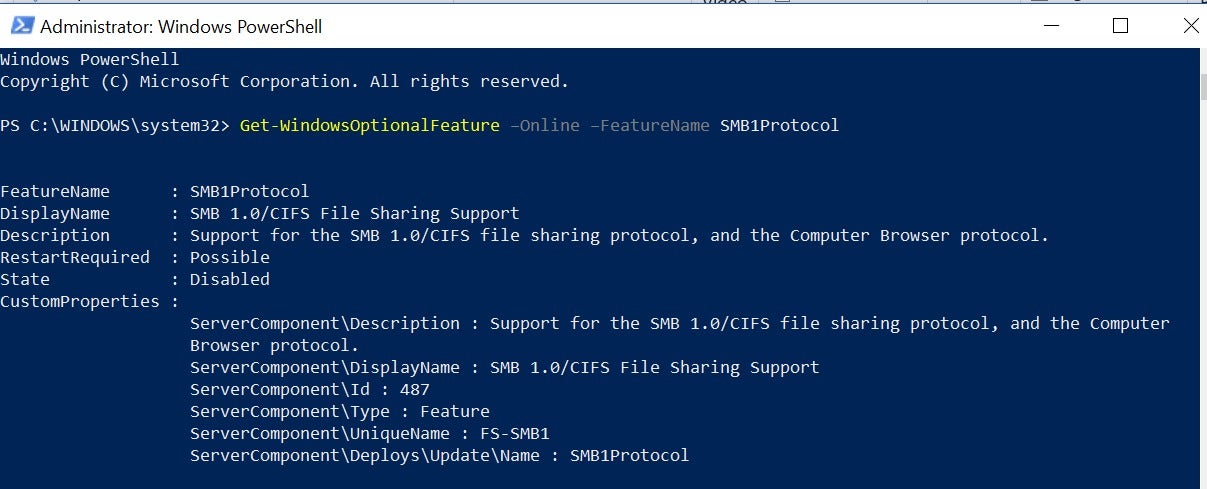
On Windows 10, you can use PowerShell to determine if SMB v1 is enabled on your computer. For example, the command Get-WindowsOptionalFeature –Online –FeatureName SMB1Protocol on my Windows 10 system provides the following information:
bradley smb 1 Microsoft
Determining support for SMB v1
You might find that older copiers and printers or older network-accessible storage still depends on SMB v1 to be functional. You need to determine if the risk of SMB v1 is acceptable, or you can contact the vendors on your impacting devices to determine if you can get a firmware update to support SMB v2 and SMB v3 on these older devices. There is even a list of products that demand SMB v1. If you are having issues disabling SMB v1 at home, check out the guidance on the Barbs Connected World blog.
Next, as recommended by the U.S. Cert, you can block SMB v1 at the firewall and internet. Most firewalls do this by default, but review if yours automatically blocks all SMB versions at the network boundary. It would do so by blocking TCP port 445 with related protocols on UDP ports 137-138 and TCP port 139.
Take the time now to review your SMB v1 status and tighten up your Server Message Block

Server Service - Error 2: The system cannot find the file specified

Had a customer with a brand new Windows 2008 R2 server VM that started representing the error shown below.

Error 2: The system cannot find the file specified


I spent some time trying different authentication methods for the service, and trying to confirm versions of srv.sys, all seemed to be correct and OK with the server, and it was patched and up to date as well.

I stumbled upon this thread talking about solving a similar issue:

User m_a_tt's post is what lead me to resolve this issue. 

I checked the "dependencies" of the service on my server:

Compared to another server with the same patch level:

So I browsed into the registry to get the multi-string data that represents these two dependencies:
HKEY_LOCAL_MACHINE\SYSTEM\CurrentControlSet\services\LanmanServer


And then added them to my "broken" server's registry.

Rebooted, and all was working again.  After some further digging, I found out that this was indeed manually configured this way by a co-worker who was following instructions from an HP Lefthand SAN installation.  The exact line in their documentation was:

sc lanmanserver depend= MSiSCSI

Future note if you implement storage - this seems to replace existing entries entirely.  The command below would be more appropriate:

sc lanmanserver depend=SamSS/Srv/MSiSCSI

Windows Server 2008 R2: Server Service Fails to Start (Error 67)


SYMPTOMS
On a computer that is running Windows Server 2008 R2, the Server service may not start. In this scenario, the following event is logged in the System log: Log Name: System
Source: Service Control Manager
Date: 03/11/2009 13:54:29

Event ID: 7023 Task
Category: None
Level: Error


Description


The Server service terminated with the following error: The network path was not found. Also, you receive the following error message if you try to manually start the Server service:
The network path was not found. CAUSE
This issue occurs because the system path variable (%path%) contains a Universal Naming Convention (UNC) path. Note To view the system path variable, use the path command.
A system path that contains a UNC path may cause severe system problems and severe software problems. Therefore, a system path that contains a UNC path is unsupported.

WORKAROUND
To work around this issue, delete the UNC paths from the system path variable. If the UNC paths must be added to the environment variables, use the user path environment variable.
Properties
Article ID: 978856 ­ Last Review: 26 March 2010 ­ Revision: 2.0

APPLIES TO
Windows Server 2008 R2 Datacenter Windows Server 2008 R2 Enterprise Windows Server 2008 R2 Standard 

How to tell if you have Exchange 2003 Enterprise or Standard

source link
source link

1) Application Log - Use the event viewer on the Exchange server and analyze the Application Log.  If event id 1216 is reported when the Information Store comes online then you have Standard.  If 1217 is reported then you have enterprise.

2) System Manager - In Exchange System Manager, tree down to the “Servers” folder  and click the folder itself so your servers appear in the right pane.  This view should show 2 columns including an “Edition” column

Server Types & Versions

It has always been easy to indentify the service pack and build numbers of Exchange servers by examining the 'Servers' view in Exchange System Manager.
The Exchange System Manager supplied with Exchange 2003 now includes two more useful columns in this view:
Type - this column will show Basic, Front-end or Clustered.
Edition - this column will show Standard, Standard/Evaluation, Enterprise or Enterprise/Evaluation.
A sample screen shot is shown below. Here you'll see an Exchange 2003 server running the evaluation edition of Exchange 2003 Enterprise coexisting with an Exchange 5.5 server. It's worthwhile to note that Exchange 5.5 servers will always show as Standard even if they are running the Enterprise version of Exchange 5.5. The good news is that the columns are correctly filled in for Exchange 2000 servers.

"Operation could not be completed (error 0x00000709)" error when you use a CNAME record for a print server in Windows Server 2008 R2

Source Link

Symptoms
When you try to connect to a printer by using an alias (CNAME) resource record for a print server that is running Windows Server 2008 R2 or for a client computer that is running Windows 7 and that hosts a printer, you receive the following error message:
Windows couldn't connect to the printer. Check the printer name and try again. If this is a network printer, make sure that the printer is turned on, and that the printer address is correct.
Additionally, the following will be seen in a Network Monitor trace:
[client request] 34 4.421875  {MSRPC:9, SMB2:8, TCP:2, IPv4:1} IP addressIP address Winspool Winspool:RpcOpenPrinterEx Request, Printer = \\printsvr\Microsoft XPS Document Writer [server response] 37 4.843750  {MSRPC:9, SMB2:8, TCP:2, IPv4:1} IP addressIP address Winspool Winspool:RpcOpenPrinterEx Response, Status = ERROR_INVALID_PRINTER_NAME
Cause
This issue can occur because of optimization changes to the spooler code for non-clustered computers. When the operating system loads, the Print Spooler service loads the local name of the computer and the other local names that are in the DNS cache. The Print Spooler service uses the local names to service requests. Therefore, the service must gain access to the network and then query for names such as an alias (CNAME) resource record. This behavior decreases the performance of the service.
Workaround
To work around this issue, use the following command to add a registry key on the print server that is running Windows 2008 Server R2 and that is being accessed by an alias (CNAME) resource record:
reg add HKLM\SYSTEM\CurrentControlSet\Control\Print /v DnsOnWire /t REG_DWORD /d 1
Note This registry key decreases performance. Therefore, we recommend that you add this registry key on only the print servers that must be accessed by an alias (CNAME) resource record.

After modifying the registry entry, please restart the Print Spooler service for the entry to take effect.

More information
Load balancing printers by using a Network Load Balancing (NLB) technology or the Domain Name System (DNS) round robin feature is not supported. The workaround that is mentioned in this article is only for the scenario where one print server that is running Windows Server 2008 R2 is accessed by an alias (CNAME) resource record that refers to only that one server.

How Do I Install the Exchange 2010 Management Tools?

Question: How do I install the Exchange Server 2010 management tools on my workstation?
The Exchange Server 2010 management tools can be installed on a computer running one of the following operating systems:
  • Windows Vista 64-bit with Service Pack 2
  • Windows 7 64-bit
  • Windows Server 2008 64-bit with Service Pack 2
  • Windows Server 2008 R2
To install the Exchange 2010 management tools on your Windows 7 computer you first need to configure the pre-requisite components.
Open the Control Panel, click on Programs and then click on Turn Windows Features On or Off.  Enable the features shown here.


Enable Windows 7 features required for Exchange Server 2010 management tools
Download the Exchange Server 2010 SP1 installation files and extract them to a temporary folder on your computer.  From that folder launch Setup.exe.  If your computer is missing either the .NET Framework or Windows PowerShell pre-requisites there will be links for Step 1 and 2 to download and install them.

Install pre-requisites for Exchange Server 2010 SP1 on Windows 7
Otherwise click on Step 3 and choose Install only languages from the DVD.

Choose language options for installing Exchange Server 2010 SP1 on Windows 7
Next, click on Step 4 to begin the installation.

Begin installation of Exchange Server 2010 SP1 on Windows 7
Click Next at the introduction page, then accept the license agreement and click Next, then choose your preference for Error Reporting and click Next again.
At the Installation Type page choose Custom Exchange Server Installation, and also tick the box to Automatically install Windows Server roles and features required for Exchange Server and click Next.

Custom Exchange Server installation for installing management tools on Windows 7
Select the Management Tools role and click Next.

Installing the Management Tools role for Exchange 2010 on Windows 7
When the Readiness Checks have completed successfully click Install.

Begin installation of Exchange 2010 management tools on Windows 7
After the install has completed you can launch the Exchange Management Console from the Start -> All Programs -> Microsoft Exchange Server 2010 menu.

Source Link

How to check if the initial replication (DFSR) was completed successfully

This will guide you on how to check the DFS Replication (DFSR) status.

Event Viewer:
A separate event (4104) is thrown for each replicated folder on each downstream partner. For example, if there are three downstream partners with four replicated folders each then a total of 12 events will be thrown on all downstream partners.
Open the Event Viewer snap-in on the server, navigate to the DFSR event log, and then check the 4104 events for your replicated folders.


WMI:
You can also check the status of initial replication by running the following command on the downstream machine. This is especially handy if the event log has been cleared.

C:\Wmic /namespace:\\root\microsoftdfs path dfsrreplicatedfolderinfo get replicationgroupname,replicatedfoldername,state


ReplicatedFolderName  ReplicationGroupName  State DATA                  Test-RG               4

The state for each folder that has completed initial replication is 4. For all other folders that are still in the process of initial replication, the ‘State’ will be 2.


Source Link

Cluster name resource failed registeration in DNS

For clustering the Cluster resource name must have full access to the Virtual Cluster Names so when failover takes place DNS entries can be updated.

However if you used a underscore _ a big NO! NO! with NetBIOS and DNS names. Solution: wipe and start over.
If you used a dash -, an exceptable NetBIOS name, your still screwed and got this error. BUG in Windows 2008 R2.  You can add the name manualy to the DNS, but it will not be automatic.

Following errors were recorded in event logs when it registrations fails:

Cluster network name resource 'SQL Network Name (VirutalClusterName)' failed registration of one or more associated DNS name(s) for the following reason:
DNS signature failed to verify.

Ensure that the network adapters associated with dependent IP address resources are configured with at least one accessible DNS server
In DNS Management (dnsmgmt.msc):

  1. Find the VirtualClusterName that is failing to register.
  2. Right-Click Properties.
  3. Select Security Tab.
  4. Click Add.
  5. Click Object Types.
  6. Check off "Computers"; uncheck other options selected.
  7. Enter in the name of the cluster (a.k.a Cluster Name Object (CNO)).
  8. Click Check Names; Verify that the entry has been found.
  9. Click OK.
  10. Give the CNO FULL Control over this record.
  11. Click OK.
Source link