Showing posts with label HP. Show all posts

Manage an HP Smart Array directly from VMware ESXi

source link

"
In my lab I’m using a Proliant DL380 G5 filled with disk as a storage server, running some VSA on top of the volume I created  and formatted with a vmfs filesystem.
I was running into performance issues, storage was performing poorly, and I needed to check for usual problems like for example cache battery status, since on a P400 raid card, write back is by default disabled if the battery has a low charge, thus lowering performances to a minimum.
My problem however was, I was running on top of this server all my iscsi shared storage, so it was not so easy to poweroff the server to open up the raid card Bios anche check. Also, every reboot cycle is really time consuming. So, since HP has always had management software for their raid controllers available for windows or linux, I went to check if there was some possibilities also for VMware ESXi.
First, I checked on HP website and there was some promising download:
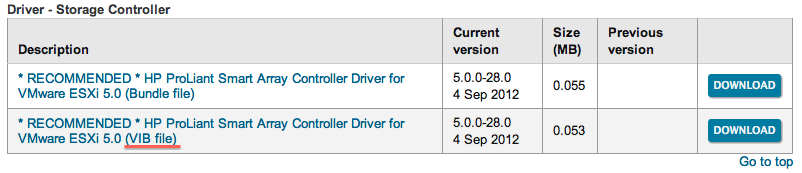
Look, a VIB file! :)
I downloaded it and installed in the usual way on my ESXi 5.1 server (even if the package is officially listed for ESXi 5.0…).

I also installed the utilities to manage the several HP components, since the first one was only the driver. If you want to install only the Raid utility, look for the hpacucli vib file.
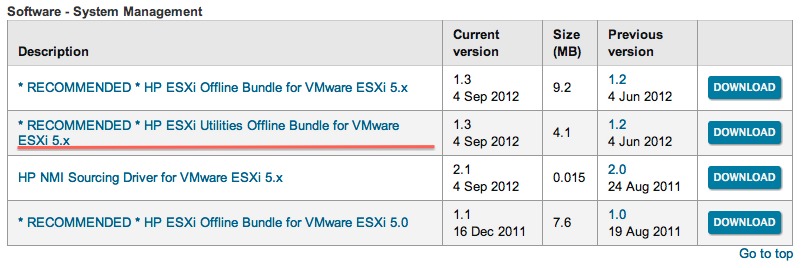
And I finally reboot the server in order to complete the installation, hopefully for the last time…
After reboot, I checked the components were installed correctly:

From here, let the fun begin! There are many commands you can run on the raid controller by running /opt/hp/hpacucli/bin/hpacucli, I’m going to show you some of them:

First, I identified the controller. Remember is in slot 3, this will be needed in the next commands.
As I said, my problem seemed to be related to the cache battery, so I went to check its status:

The status seems to be ok, but I went to enable anyway the cache, the command is:
1ctrl slot=3 modify dwc=enable forced
there are many commands as I said, and I found this page with many example. Go to check it. As a last example, a fun stuff:

First, I identified the physical disks in the controller (pd), then I enabled the led on every single disk. This is the result :)


 "

Blank HP iLO Integrated Remote Console (IRC) page


Issue: After clicking the HP iLO Integrated Remote Console link, a blank page with a 'Close' button displayed only.


This is to ActiveX issue whereby it is trying to install an ActiveX cab file but due to access permission issue, it fails.


Solution 1) Open the browser as administrator. Click the HP iLO Integrated Remote Console link and install the ActiveX cab file when prompt.

Solution 2) Login as administrator. Click the HP iLO Integrated Remote Console link and install the ActiveX cab file when prompt.

Add HP iLO account remotely

You can use CPQLOCFG.exe to do this. Add user with this the sample XML Scripts below.. For CPQLOCFG, you need to know the credentials for an existing Ilo user. You can do this from a remote machine.

You can download the utility from www.hp.com/servers/lights-out. select ILO and softwares and drivers. Download Hp lights-out configuration utility.

The syntax will be as below. You can read the ILO user credentials from a file to generate the command line while sending the script.

cpqlocfg.exe -s [servername|ipaddress]|[port] -l [logfilename] -f [input filename] -v -c -u [username] -p [password]


XML Script sample details:
http://h30499.www3.hp.com/hpeb/attachments/hpeb/itrc-298/2324/1/282281.xml


Source link

Corrupt XML file messages in HP NIC

Corrupt XML file messages when you click on the VLAN tab of the network configuration utility plus missing VLAN parameter errors in the Windows event log. This might only occur if you have teamed two or more network interface cards. (HP calls each card a Miniport.):
- An error occurred due to invalid data in the XML file used by this application. The XML file has been corrupted and should be reinstalled from the installation media.

http://www.eventid.net/display.asp?eventid=49&eventno=8553&source=CPQTeamMP&phase=1

HP Virtual Bus Device installation requires a newer version. Version 4.6.16.0 is required.

Error: HP Virtual Bus Device installation requires a newer version. Version 4.6.16.0 is required.

Solution:


SUPPORT COMMUNICATION - CUSTOMER NOTICE
Document ID: c01684544
Version: 4
Notice: (Revision) HP NC-Series Broadcom 1GbE Multifunction Driver for Windows Server - First Update to Version 4.6.16.0 To Avoid Message "HP Virtual Bus Device Installation Requires a Newer Version. Version 4.6.16.0 is Required."
NOTICE: The information in this document, including products and software versions, is current as of the Release Date. This document is subject to change without notice.
Release Date: 2009-07-29
Last Updated: 2009-07-29

DESCRIPTION
Document Version
Release Date
Details
4
07/29/2009
Updated Details section to change "Windows 2003 x64 Editions" to "Windows Server 2008 x64 Editions" for cp009684.exe.
3
03/31/2009
Added note stating reboot is required after driver upgrade.
2
03/06/2009
Driver name updated.
1
03/04/2009
Original Document Release.
On a ProLiant server running Windows Server 2003 or Windows Server 2008, if a version of the HP NC-Series Broadcom 1GbE Multifunction Driver for Windows Server earlier than version 4.6.16.0 is installed and an attempt to upgrade the driver to a version later than version 4.6.16.0 is made, the following message is displayed and is written to the cpqsetup.log:
HP Virtual Bus Device installation requires a newer version. Version 4.6.16.0 is required.
This will not occur if running a version of the driver later than version 4.6.16.0. This only occurs when running a driver earlier than version 4.6.16.0 and attempting to update the driver beyond version 4.6.16.0.
DETAILS
The HP NC-Series Broadcom 1GbE Multifunction Driver update does not complete, and the above message is displayed to ensure compatibility.
When running a driver version earlier than version 4.6.16.0, two driver updates are required for the driver to be updated to a version later than version 4.6.16.0. Install version 4.6.16.0 and then upgrade the driver beyond version 4.6.16.0 as follows:
  1. Install the HP NC-Series Broadcom 1GbE Multifunction Driver for Windows Server Version 4.6.16.0, located at the following URLs:
    For Windows Server 2003, use cp009681.exe, located at the following URL:

    For Windows Server 2003 x64 Editions, use cp009682.exe, located at the following URL:

    For Windows Server 2008, use cp009683.exe, located at the following URL:
    For Windows Server 2008 x64 Editions, use cp009684.exe, located at the following URL:

  2. After updating to Version 4.6.16.0, the driver can be updated to a version later than version 4.6.16.0. Perform the following steps to obtain the latest version of the HP NC-Series Broadcom 1GbE Multifunction Driver for Windows Server:
    Note: After upgrading the driver to Version 4.6.16.0 (or later), reboot the server.
  1. Click on the following URL:
  2. Under Select a product category, select Servers .
  3. Select ProLiant/tc Series Servers .
  4. Select the desired ProLiant model.
  5. Select the appropriate operating system.
  6. Select the Driver-Network category.
  7. Select the HP NC-Series Broadcom 1GbE Multifunction Driver and click the "Download" button.

HP Network Config Corrupt XML file messages


Error : "Corrupt XML file messages when you click on the VLAN tab of the network configuration utility plus missing VLAN parameter errors in the Windows event log. This might only occur if you have teamed two or more network interface cards. (HP calls each card a Miniport.):
- An error occurred due to invalid data in the XML file used by this application. The XML file has been corrupted and should be reinstalled from the installation media."

Solution: The solution is to rename the directory that the network configuration utility was originally installed in (normally C:\Program Files\HP\NCU), and then reinstall the network configuration utility. That forces it to install the new version of the XML file. Your existing network configuration will be lost."

Updated Solution:
1) Create 'VlanID' and 'VlanDefaultID' REG_DWORD 0x0 values 
in 'HKEY_LOCAL_MACHINE\SYSTEM\CurrentControlSet\Control\Class\{4D36E972-E325-11CE-BFC1-08002BE10318}\0008'

I then restarted the server and dissolved and re-created the team. This has solved the problems of the erroneous error messages concerning a corrupt XML file.