Increase RAM on nutanix ce

source link

"

I setup nutanix community edition today in my homelab, and I was interested in looking at how to change both CVM vCPU and vRAM count.  By default my CVM was running 4vcpu and 12GB of RAM, and I wanted to change this to 8vcpu and 15GB RAM (my CE whitebox is running a 8 core Atom CPU and 16GB RAM)
KVM is very new to me, so for my own documentation sake here are the steps I used.
SSH onto the KVM hypervisor using your favorite SSH client, in my case KVM was running on IP address 192.168.55.4, whilst the CVM was using 192.168.55.3
Logon using default nutanix KVM credentials of
Username: root
Password: nutanix/4u
First run virsh list to get the name of your Nutanix CVM, in my case it is NTNX-72c234e3-A-CVM
virsh list
Next, run virsh dominfo NTNX-72c243e3-A-CVM to confirm number of CPU’s and RAM
To change the amount of RAM, in my case I increased from 12GB to 15GB, run the following commands and substitute the approriate CVM name
#Shutdown CVM
virsh shutdown NTNX-72c243e3-A-CVM
#Set vRAM (There should be two  – -dashes before config)
virsh setmaxmem NTNX-72c243e3-A-CVM 15G – -config
virsh setmem NTNX-72c243e3-A-CVM 15G – -config
#start VM again
virsh start NTNX-72c243e3-A-CVM
To change the amount of CPU’s, edit the virsh XML file.
#edit virsh xml
virsh edit NTNX-72c243e3-A-CVM
cpu change
This will open the VM XML file using vi editor, use the following commands to edit the file (I always forget how to edit in vi, so I will show the steps here for my own sake)
  1. Press “i” to enter insert mode
  2. Use the arrow keys to move to the following line 4
  3. Change the 4 to whatever you want, in my case I did 8
  4. Press “esc” to exit insert mode
  5. Type “:wq” to write out and save the file
#Shutdown the Nutanix CVM
virsh shutdown NTNX-72c243e3-A-CVM
#Start the Nutanix CVM again
virsh start NTNX-72c243e3-A-CVM
Run virsh dominfo again to confirm the changes were successful
virsh dominfo NTNX-72c243e3-A-CVM
virsh dom info
In most cases with Nutanix CE, the defaults are 99% OK for most people.  So test to see if it’s really required to increase or decrease CVM resources according to required workload and hardware specifications.  In my case I saw no difference so I set the defaults back

"

Nutanix Nested Setup Guide

recommended link


https://kallesplayground.wordpress.com/2015/06/24/step-by-step-how-to-install-nutanix-ce-nested-on-vmware-esxi/comment-page-1/

http://www.vryan.co.uk/index.php/2015/06/22/how-to-create-a-nested-virtual-nutanixce-cluster/

Windows Server 2012 R2: solving .NET Framework 3.5 installation problems

source link

"


I faced a problem at a customer site last week when I tried to install the .NET Framework 3.5 – a prerequisite for installing SQL Server 2012 on a Windows Server 2012 R2. I opened the Server Manager and then navigated to the Manage, Add Roles and Features section:
b2ap3_thumbnail_pic01.jpg
I selected the .NET Framework 3.5 Features option:
b2ap3_thumbnail_pic02.jpg
I specified an alternate source path:
b2ap3_thumbnail_pic03.jpg
… and surprise! Even though an ISO of Windows Server 2012 R2 was mapped to my D: drive, the installation failed with this strange error: “The source file could not be found…”
After some investigations, I found that this problem is quite common and that Microsoft has published a fix … which unfortunately does not work for me!
I tried the same installation with different ways: command prompt, PowerShel l… but absolutely NO RESULT.
I finally decided to open a PowerShell console to check the Windows Features available on my server with the cmdlet Get-WindowsFeature:
b2ap3_thumbnail_Pic1.jpg
Strangely, the status of the .NET Framework 3.5 is not showing “Available”, but “Removed”!
b2ap3_thumbnail_Pic2.jpg
So, how do I change this state from removed to available?
After some investigations and after having tried some fixes provided by persons who faced to the same problem as me, I finally found the Standalone Offline Installer tool that solved my problem by enabling the .NET Framework 3.5 (many thanks to Abbodi1406).
I downloaded this exe file and executed it on my server.
An installer screen appeared:
b2ap3_thumbnail_pic4.jpg
After clicking on the Next button, a command prompt screen appeared which showed the completion state of the process.
pic6.jpg
As soon as the process was finished, I went back to my PowerShell screen to check if my .NET Framework 3.5 is now available – by running my PowerShell cmdlet Get-WindowsFeature:
b2ap3_thumbnail_pic10.jpg
The .NET Framework 3.5 now was available and I as able to restart the installation process from the beginning by navigating to the server manager, selecting the concerned feature and giving the alternate source path.
pic8.jpg
I finally succeded in installing my .NET Framework 3.5!
I hope that my blog post will help some of you to resolve this installation problem

"

Manage an HP Smart Array directly from VMware ESXi

source link

"
In my lab I’m using a Proliant DL380 G5 filled with disk as a storage server, running some VSA on top of the volume I created  and formatted with a vmfs filesystem.
I was running into performance issues, storage was performing poorly, and I needed to check for usual problems like for example cache battery status, since on a P400 raid card, write back is by default disabled if the battery has a low charge, thus lowering performances to a minimum.
My problem however was, I was running on top of this server all my iscsi shared storage, so it was not so easy to poweroff the server to open up the raid card Bios anche check. Also, every reboot cycle is really time consuming. So, since HP has always had management software for their raid controllers available for windows or linux, I went to check if there was some possibilities also for VMware ESXi.
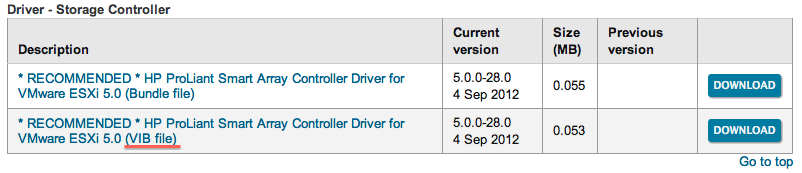
First, I checked on HP website and there was some promising download:

Look, a VIB file! :)
I downloaded it and installed in the usual way on my ESXi 5.1 server (even if the package is officially listed for ESXi 5.0…).

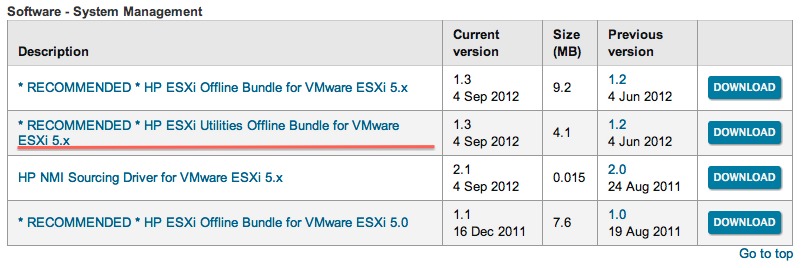
I also installed the utilities to manage the several HP components, since the first one was only the driver. If you want to install only the Raid utility, look for the hpacucli vib file.

And I finally reboot the server in order to complete the installation, hopefully for the last time…
After reboot, I checked the components were installed correctly:

From here, let the fun begin! There are many commands you can run on the raid controller by running /opt/hp/hpacucli/bin/hpacucli, I’m going to show you some of them:

First, I identified the controller. Remember is in slot 3, this will be needed in the next commands.
As I said, my problem seemed to be related to the cache battery, so I went to check its status:

The status seems to be ok, but I went to enable anyway the cache, the command is:
1ctrl slot=3 modify dwc=enable forced
there are many commands as I said, and I found this page with many example. Go to check it. As a last example, a fun stuff:

First, I identified the physical disks in the controller (pd), then I enabled the led on every single disk. This is the result :)


 "

“Device eth0 does not seem to be present” error when we move or clone a CentOS 6.3 virtual machine in vSphere

source link

"
When we move or clone a CentOS 6.3 Virtual machine made in vSphere5.5, and boot the machine once it is moved/cloned, we get the following error:

“Device eth0 does not seem to be present”.

This is due the fact that whenever we move or clone a Virtual machine, vSphere changes the MAC Address and CentOS renames the NIC from eth0 to eth1.  CentOS stores the network interface hardware configuration using udev.  The file is:

/etc/udev/rules.d/70-persistent-net.rules

Open this file in vi editor and delete the old entry for eth0 and edit the new entry for eth1 to eth0.
Then you need to edit the following file:

/etc/sysconfig/network-scripts/ifcfg-eth0

Record the HWADDR from the 70-persistent-net.rules configuration file and replace it with the existing HWADDR in ifcfg-eth0 configuration file.

Reboot the machine.
"