Windows Server 2008 R2: Server Service Fails to Start (Error 67)


SYMPTOMS
On a computer that is running Windows Server 2008 R2, the Server service may not start. In this scenario, the following event is logged in the System log: Log Name: System
Source: Service Control Manager
Date: 03/11/2009 13:54:29

Event ID: 7023 Task
Category: None
Level: Error


Description: 


The Server service terminated with the following error: The network path was not found. Also, you receive the following error message if you try to manually start the Server service:
The network path was not found. CAUSE
This issue occurs because the system path variable (%path%) contains a Universal Naming Convention (UNC) path. Note To view the system path variable, use the path command.
A system path that contains a UNC path may cause severe system problems and severe software problems. Therefore, a system path that contains a UNC path is unsupported.

WORKAROUND
To work around this issue, delete the UNC paths from the system path variable. If the UNC paths must be added to the environment variables, use the user path environment variable.
Properties
Article ID: 978856 ­ Last Review: 26 March 2010 ­ Revision: 2.0

APPLIES TO
Windows Server 2008 R2 Datacenter Windows Server 2008 R2 Enterprise Windows Server 2008 R2 Standard 

Aria2 download manager for Buffalo NAS LS-WVL

source link


1. Existing Buffalo NAS version is 1.64Mod
Go to http://forum.buffalo.nas-central.org/ to update 

2. Install Optware
cd /tmp

wget
http://ipkg.nslu2-linux.org/feeds/optware/cs08q1armel/cross/stable/ls-mvkw-bootstrap_1.2-7_arm.xsh
sh ./ls-mvkw-bootstrap_1.2-7_arm.xsh

mv /etc/init.d/optware /etc/init.d/rc.optware

ipkg update


3. Install aria2
ipkg install aria2

4. Running aria2 (take note of the download location, adapt it to yours)
aria2c --event-poll=select --enable-rpc --rpc-listen-all=true --rpc-allow-origin-all --dir=/mnt/disk1/volume1/downloads --file-allocation=none -c -D

5. Running aria2 WEB UI
Go to https://github.com/ziahamza/webui-aria2 and download the zip file.
Open the index.thm file and configure it to your nas IP.

HowTo : Install VMware Tools on CentOS/RHEL

source link

VMware Tools is a suite of utilities that enhances the performance of the virtual machine's guest operating system and improves management of the virtual machine.
Without VMware Tools installed in your guest operating system, guest performance lacks important functionality.

Installing VMware Tools

Open Vmware Worstation or ESX console and Locate the VM you need to install VMware Tools to.
Right click the VM and choose "Tools", then select "Install VMware Tools".
It will connect the virtual CD-ROM device to the appropriate CD image containing the tools for your virtual machine.
Log into VMware Guest you need to install VMware Tools to.

Install the kernel-devel, gcc, dracut, make and perl packages using yum :
$ yum -y install kernel-devel gcc dracut make perl

Mount CD image with VMware Tools :
$ mkdir /mnt/cdrom
$ mount /dev/cdrom /mnt/cdrom

Copy the archive with VMware Tools to temporary directory :
$ cp /mnt/cdrom/VMwareTools-*.tar.gz /tmp

Uncompress the archive and run the installer :
$ tar -zxf /tmp/VMwareTools-*.tar.gz -C /tmp
$ /tmp/vmware-tools-distrib/vmware-install.pl --default

Remove temporary files :
$ rm -f /tmp/VMwareTools-*.tar.gz
$ rm -rf /tmp/vmware-tools-distrib

Validating VMware Tools Installation

Use the command as follows to validate that VMware Tools is running :
$ initctl list | grep vmware-tools
vmware-tools start/running

To determine the vmware-tools version, run the command :
$ vmware-toolbox-cmd -v

DFS: Properties cannot be set on the namespace server – Access is denied

Excellent article on this!
Source link

"
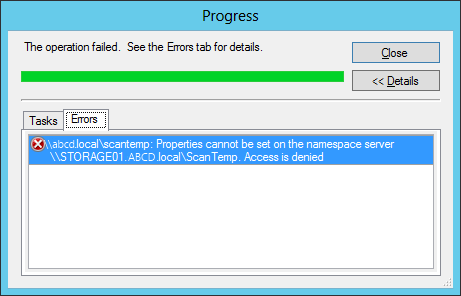
I ran across a strange problem the other day with DFS. I needed to override the referral ordering for a namespace server, but the change wouldn’t take. I got a status of Error during the “Commit changes.” task. In the detail, it showed “Properties cannot be set on the namespace server \\SERVER.domain.local\Share. Access is denied”
This error must be uncommon, because all of the search results are for a similar but differently worded error about changing the properties of a folder and that issue’s resolutions don’t apply here.
I finally figured out the problem, and thought I’d share!

The Root of the Problem

If you looked at the other search results and forum postings and Microsoft KB articles, you probably went around and checked permissions on the target folders. If you’re here by now, then you know that it wasn’t the problem.
Actually, the issue here doesn’t live on any of the individual namespace servers. Instead it’s a permissions problem in the Active Directory objects used to store information about the DFS shares. The computer object for each namespace server in a namespace will have some permissions granted on that namespace’s object in AD.
In my case, one of the computers was missing (I suspect that this was a side-effect of a swing migration, as the missing computer was a secondary domain controller that was demoted and then re-promoted after the migration, but that’s another story).
It’s worth noting that this prevented me from changing the referral ordering of another namespace server as well, so even if the ACL looks to be in order for the one you’re trying to change, it’s important to check the ACLs for every namespace server.

The Easy Fix?

You could blow away the whole DFS share and start fresh. That should fix the problem. Of course, if you run into errors deleting it, you might have to forcefully delete it, then use dfsutil.exe to clean up the left over registry entries.
Plus, in my case at least, the DFS share worked just fine. I really didn’t want to bring the share down, or worry about cleaning up leftovers.

The Easy Enough Fix

Look ma! No downtime! Since the problem lives in Active Directory, you’ll be making changes to AD itself. We’ll be using ADSI Edit, so hop onto a Domain Controller or a machine with the ADSI Edit RSAT. There’s no need to make this change from a namespace server on the DFS share.
You should also have a complete list of the namespace servers for the share.

Use ADSI Edit to view the DFS configuration

  1. In ADSI Edit, connect to Default naming context.
  2. Browse to DC=ABCD,DC=local > CN=System > CN=Dfs‑Configuration 
  3. Here, you’ll see a list of your DFS shares: CN=ShareName
  4. Open the Properties of the affected share. In the first tab (Attribute Editor), look for the remoteServerName field.


    This contains the list of all the namespace servers that AD has listed. Make sure this matches what is shown in the DFS management console. If it doesn’t, you might have bigger problems, and you may need to resort to the “easy” fix.
  5. Now you can switch over to the Security tab. Click the Advanced button so that you see all the entries and the special permissions.

    Looking at the entries for the computer objects (the ones with the $ at the end), we can see that they all have the “Read/write all properties” access. In this example, you’ll also see a missing object, listed as “Account Unknown(SID)” with the same access as the other computers, so it’s a good bet that this is the  missing one.
Please note that I took these screenshots after I fixed the issue. In the above, STORAGE01$ is not missing, but in the subsequent screens, I use it as the example machine I am adding. I hope it’s not confusing!

Find the missing namespace server and add it back

  1. In the Advanced Security dialog above, click the Add button.
  2. In the “Select…” dialog, click “Object Types…” and make sure that Computers is selected. Click OK.
  3. Now choose the computer that was missing from the list, and click OK.
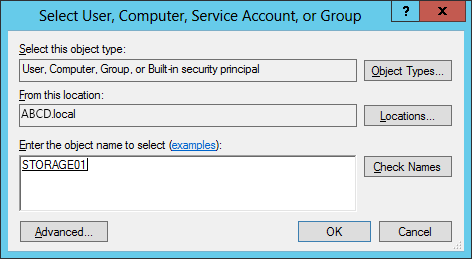
  4. Next, you want to give the computer object the  “Read all properties” and “Write all properties” Permissions. You can leave the Properties alone or clear them all in advance, as I did. By default, other Permissions may be granted, but only the two listed should be kept.Server 2012 Dialog:

    Server 2008 R2 (and earlier) Dialog:

Wait, Then Test

Once the changes are made, wait until they have had time to replicate to all DCs. It can be difficult to tell which DC you’re hitting when you try to make administrative changes with DFS, so best to wait until all of them have the same information. You could force replication if you prefer.
When you’re sure it’s all synchronized, test it out. I didn’t run into any issues after this.

Unsolved Mysteries

I still don’t know exactly how that computer went missing. As I said, there was some turmoil due to a previous swing migration, but the share was working fine. Stranger still, other DFS shares had the same namespace server missing in the ACLs, yet they had no problem making changes to their properties (like the referral ordering). Seems like they should be broken.

"

Outlook 'contacting the server information' message


After implementing pacfile solution for proxy, the encounter 'contacting the server information' message keep appearing when opening HTML in Outlook.
Internet browsing using Internet Explorer is very slow in loading too.

Manage to isolate it that it is due to constant DNS reverse lookup for each access and the root cause is a certain parameter in the pacfile.

Issue caused by: isInNet(host, "a.b.c.d") parameters.
article link
"

The danger of IsInNet, isResolveable and dnsResolve forcing client DNS Lookups for every Query

 
Using isInNet(host, "a.b.c.d") can cause major chaos with your DNS infrastructure. This relatively innocuous looking function will force EVERY browser to perform a reverse DNS lookup on every unique hostname that it tries to contact that’s not already a simple IP address. This can rapidly have significant consequences, depending on how many workstations you have and how robust your DNS infrastructure is. This doesn’t necessary mean that you can’t use this function, but that you must do it carefully and understand the implications. See the "PAC File Tricks" section for one way that it can be used safely.
 
The function isResolvable and dnsResolve have very similar issues as the described above They forces a DNS query every time the PAC is parsed for every request. Be careful using this for the same reasons. If you have a problem that only one of these functions can solve, use it carefully. Ensure that you don’t do unrestricted lookups for all hosts. Use logic like "if the domain name is company.com and IsResolvable"
 
If you use these functions, unexpected behavior might result. For example, if you try to look up an invalid domain name it’s possible that there might be a 30+ second delay for the request as the client tries to resolve the name. It can also place a tremendous load on your company’s DNS infrastructure, so be careful of its capacity.
"

Tools used for the troubleshooting: DNSQuerySniffer

After removing the IsInNet proxy pac parameters, you will realise that the number of DNS query is reduced on the DNSQuerySniffer tool.
And the message has stop and Internet Explorer browsing is loading faster too.