If you encounter a issue where the download is slow but upload is normal.
It could be related to the "Smartbyte" application that is installed in the Dell XPS 13.
After turning is off, the download speed is back to normal.
Alternatively, just look for "Smartbyte" in Add/Remove, and uninstall it.
This program is not useful as it deem it is.
"The DFS replication service stopped replication on the replicated folder at local path ... "
The following article presents how have I bypassed the above issues thanks to the articles on Technet and one of the Internet blogs.
I have also included some of my own augmentations into the provided
solutions. Hope you'll find those information useful and consolidated.
2) Go into the drive containing replicated folder and make sure that the following folder options are set as follows:
Show hidden files, folders, and drives - ENABLED
Hide protected operating system files (Recommended) - DISABLED
3) On the Security tab of System Volume Information folder Properties add the user that you're currently logged in with Full Control permissions and the scope of This folder only.
4) Go into System Volume Information folder and on the Security tab of DFSR folder Properties add the user that you're currently logged in with Full Control permission and the scope of This folder, subfolders and files. Make sure that permissions get propated to all child items of the folder.
5) Remove the DFSR folder. If the above results in the Source Path Too Long error like it's shown on the following screenshot:
perform the following steps (thanks to this blog):
create TEMP folder in the C drive root
run the following command
robocopy C:\TEMP [DFSR folder path] /MIR
remove both TEMP and DFSR folders, this time fortunately without the above error.
6) Remove the user that you're currently logged in from Security tab of System Volume Information folder Properties.
7) Enable the DFS Replication service and start it back. You're done. The DFS replication starts over again!
Server Message Block (SMB) is a foundational service that has been
used for many years. This internet standard protocol enables Windows to
share files, printers and serial ports. SMB is used over the internet on
top of the TCP/IP protocol.
SMB v1 has been in use since Windows 95, and in 2019, it’s
still often found and abused in networks. If you have SMB v1 enabled in
your network, it can be used in blended attacks that might include ransomware and other malware. In a 2016 blog post, Ned Pyle lists the protections you lose when using SMB v1:
Better message signing (SMB
2.02+). HMAC SHA-256 replaces MD5 as the hashing algorithm in SMB 2.02,
SMB 2.1 and AES-CMAC replaces that in SMB 3.0+. Signing performance
increases in SMB2 and 3.
As Pyle points out, “The nasty bit is that no matter how you
secure all these things, if your clients use SMB1, then a
man-in-the-middle can tell your client to ignore all the above. “
How to detect and disable SMB v1
You
can use various means to disable SMB v1 in your network. For example,
you can use group policy to disable it with a registry key as noted in a
2017 blog post. In addition, you can follow the guidance in KB2696547 to detect if SMB v1 is still in use in your network and to gracefully disable it.
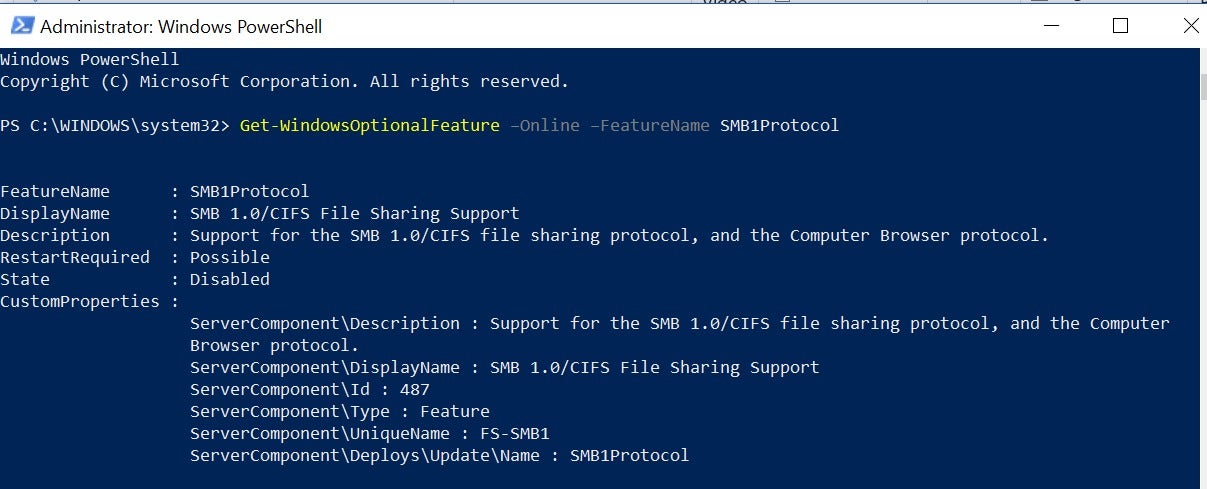
On Windows 10, you can use PowerShell to determine if SMB v1 is enabled on your computer. For example, the command Get-WindowsOptionalFeature –Online –FeatureName SMB1Protocol on my Windows 10 system provides the following information: Microsoft
Determining support for SMB v1 You might find that older copiers and printers or older
network-accessible storage still depends on SMB v1 to be functional. You
need to determine if the risk of SMB v1 is acceptable, or you can
contact the vendors on your impacting devices to determine if you can
get a firmware update to support SMB v2 and SMB v3 on these older
devices. There is even a list of products that demand SMB v1. If you are having issues disabling SMB v1 at home, check out the guidance on the Barbs Connected World blog.
Next, as recommended by the U.S. Cert,
you can block SMB v1 at the firewall and internet. Most firewalls do
this by default, but review if yours automatically blocks all SMB
versions at the network boundary. It would do so by blocking TCP port
445 with related protocols on UDP ports 137-138 and TCP port 139.
Take the time now to review your SMB v1 status and tighten up your Server Message Block