Nutanix Nested Setup Guide

recommended link


https://kallesplayground.wordpress.com/2015/06/24/step-by-step-how-to-install-nutanix-ce-nested-on-vmware-esxi/comment-page-1/

http://www.vryan.co.uk/index.php/2015/06/22/how-to-create-a-nested-virtual-nutanixce-cluster/

Windows Server 2012 R2: solving .NET Framework 3.5 installation problems

source link

"


I faced a problem at a customer site last week when I tried to install the .NET Framework 3.5 – a prerequisite for installing SQL Server 2012 on a Windows Server 2012 R2. I opened the Server Manager and then navigated to the Manage, Add Roles and Features section:
b2ap3_thumbnail_pic01.jpg
I selected the .NET Framework 3.5 Features option:
b2ap3_thumbnail_pic02.jpg
I specified an alternate source path:
b2ap3_thumbnail_pic03.jpg
… and surprise! Even though an ISO of Windows Server 2012 R2 was mapped to my D: drive, the installation failed with this strange error: “The source file could not be found…”
After some investigations, I found that this problem is quite common and that Microsoft has published a fix … which unfortunately does not work for me!
I tried the same installation with different ways: command prompt, PowerShel l… but absolutely NO RESULT.
I finally decided to open a PowerShell console to check the Windows Features available on my server with the cmdlet Get-WindowsFeature:
b2ap3_thumbnail_Pic1.jpg
Strangely, the status of the .NET Framework 3.5 is not showing “Available”, but “Removed”!
b2ap3_thumbnail_Pic2.jpg
So, how do I change this state from removed to available?
After some investigations and after having tried some fixes provided by persons who faced to the same problem as me, I finally found the Standalone Offline Installer tool that solved my problem by enabling the .NET Framework 3.5 (many thanks to Abbodi1406).
I downloaded this exe file and executed it on my server.
An installer screen appeared:
b2ap3_thumbnail_pic4.jpg
After clicking on the Next button, a command prompt screen appeared which showed the completion state of the process.
pic6.jpg
As soon as the process was finished, I went back to my PowerShell screen to check if my .NET Framework 3.5 is now available – by running my PowerShell cmdlet Get-WindowsFeature:
b2ap3_thumbnail_pic10.jpg
The .NET Framework 3.5 now was available and I as able to restart the installation process from the beginning by navigating to the server manager, selecting the concerned feature and giving the alternate source path.
pic8.jpg
I finally succeded in installing my .NET Framework 3.5!
I hope that my blog post will help some of you to resolve this installation problem

"

Manage an HP Smart Array directly from VMware ESXi

source link

"
In my lab I’m using a Proliant DL380 G5 filled with disk as a storage server, running some VSA on top of the volume I created  and formatted with a vmfs filesystem.
I was running into performance issues, storage was performing poorly, and I needed to check for usual problems like for example cache battery status, since on a P400 raid card, write back is by default disabled if the battery has a low charge, thus lowering performances to a minimum.
My problem however was, I was running on top of this server all my iscsi shared storage, so it was not so easy to poweroff the server to open up the raid card Bios anche check. Also, every reboot cycle is really time consuming. So, since HP has always had management software for their raid controllers available for windows or linux, I went to check if there was some possibilities also for VMware ESXi.
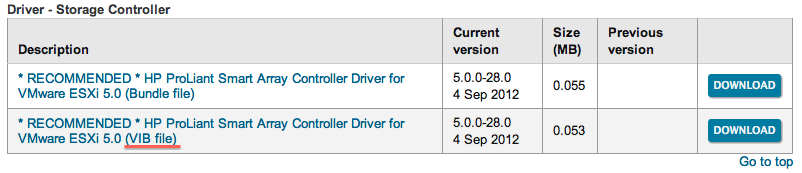
First, I checked on HP website and there was some promising download:

Look, a VIB file! :)
I downloaded it and installed in the usual way on my ESXi 5.1 server (even if the package is officially listed for ESXi 5.0…).

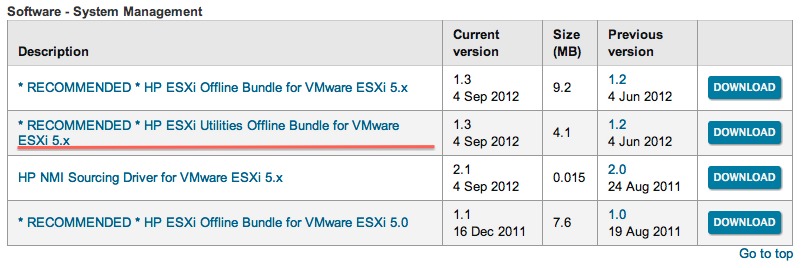
I also installed the utilities to manage the several HP components, since the first one was only the driver. If you want to install only the Raid utility, look for the hpacucli vib file.

And I finally reboot the server in order to complete the installation, hopefully for the last time…
After reboot, I checked the components were installed correctly:

From here, let the fun begin! There are many commands you can run on the raid controller by running /opt/hp/hpacucli/bin/hpacucli, I’m going to show you some of them:

First, I identified the controller. Remember is in slot 3, this will be needed in the next commands.
As I said, my problem seemed to be related to the cache battery, so I went to check its status:

The status seems to be ok, but I went to enable anyway the cache, the command is:
1ctrl slot=3 modify dwc=enable forced
there are many commands as I said, and I found this page with many example. Go to check it. As a last example, a fun stuff:

First, I identified the physical disks in the controller (pd), then I enabled the led on every single disk. This is the result :)


 "

“Device eth0 does not seem to be present” error when we move or clone a CentOS 6.3 virtual machine in vSphere

source link

"
When we move or clone a CentOS 6.3 Virtual machine made in vSphere5.5, and boot the machine once it is moved/cloned, we get the following error:

“Device eth0 does not seem to be present”.

This is due the fact that whenever we move or clone a Virtual machine, vSphere changes the MAC Address and CentOS renames the NIC from eth0 to eth1.  CentOS stores the network interface hardware configuration using udev.  The file is:

/etc/udev/rules.d/70-persistent-net.rules

Open this file in vi editor and delete the old entry for eth0 and edit the new entry for eth1 to eth0.
Then you need to edit the following file:

/etc/sysconfig/network-scripts/ifcfg-eth0

Record the HWADDR from the 70-persistent-net.rules configuration file and replace it with the existing HWADDR in ifcfg-eth0 configuration file.

Reboot the machine.
"

Cannot format hard disk with VMFS5 after removing it from RAID array

source link

"
Today I tried to install the new NexentaStor 4.0.1 on my x3650 M2 with local harddisks. To get the best performance my plan was to pass-through all local disks to the VM. For that I had to remove all RAID arrays that are currently configured across my 8 internal drives. After deleting the RAID arrays I started the host. When my host was up and running I tried to format one of the disks an got the following error message.
Call “HostDatastoreSystem.QueryVmfsDatastoreCreateOptions” for object “ha-datastoresystem” on ESXi “xxx.xxx.xxx.xx″ failed.
I have done this with several other disks and it looked like that only 3 had the problem. I enabled SSH and connected to the host.
There i used this command to list all the available devices:
ls -lha /vmfs/devices/disks/
This was the shortened output


As you can see there is a partition on the disks I couldn’t format.
The following command had shown me some information about the device.
partedUtil getptbl /vmfs/devices/disks/naa.5000c50023397a33
This was the output:
Error: The primary GPT table states that the backup GPT is located beyond the end of disk. This may happen if the disk has shrunk or partition table is corrupted. Fix, by writing backup table at the end? This will also fix the last usable sector appropriately as per the new reduced size. diskPath (/dev/disks/naa.5000c50023397a33) diskSize (286748000) AlternateLBA (570310655) LastUsableLBA (570310622)
Warning: The available space to /dev/disks/naa.5000c50023397a33 appears to have shrunk. This may happen if the disk size has reduced. The space has been reduced by (283562656 blocks). You can fix the GPT to correct the available space or continue with the current settings ? This will also move the backup table at the end if it is not at the end already. diskSize (286748000) AlternateLBA (570310655) LastUsableLBA (570310622) NewLastUsableLBA (286747966)
Error: Can’t have a partition outside the disk!
Unable to read partition table for device /vmfs/devices/disks/naa.5000c50023397a33
It looks like that after deleting the RAID array not all VMFS partition table information was deleted too, so I had to clear it manually.
To do this simply create a normal msdos partition on the affected disks with this command:
partedUtil setptbl /vmfs/devices/disks/naa.5000c50023397a33 msdos
After setting a new partition I was able to format the disk with VMFS5.

"